 Setup guide
Connect your directory
Let people pick colleagues by name when inviting them to a Your360 program, instead of typing email addresses from memory. Your360 reads profiles from your Okta directory live, as each search is typed, and stores no copy of your roster.
Which guide is this?
This one covers the one-click install: our published Okta integration, which takes two values to connect and can read every active user in your directory.
The custom app guide covers the other way — an Okta app you build yourself, where a resource set you control decides which groups Your360 can read. It is a longer setup for the same search. Pick one; you don't need both.
This is separate from single sign-on
Your360 AI Directory Lookup is an API service integration with its own credentials, listed in the Okta Integration Network separately from the Your360 SSO app. It signs nobody in and it is not required for sign-in. You can install either, both, or neither, and removing one does not affect the other.
Supported features
| Feature | Notes | |
|---|---|---|
| Read user profiles | ✓ | First name, last name and email, for ACTIVE users, read live on each search. |
| Directory search in Your360 | ✓ | Name and email search when nominating participants or feedback providers. |
| Single sign-on | — | Not part of this integration. SP-initiated and IdP-initiated SSO are covered by the separate OIDC and SAML apps. |
| Provisioning (SCIM) | — | Not supported. Nothing is created, updated or deactivated in Okta or in Your360. |
| Writing to your directory | — | Not supported. The scope we request is read-only. |
| Groups, apps, logs, policies | — | Not requested and not readable. |
| Restricting which users are visible | — | Not possible with this integration — see below. |
Scopes requested, and why
| Scope | What it is used for | |
|---|---|---|
okta.users.read | → | The only scope requested. Your360 calls GET /api/v1/users with a search term an admin typed, filtered to active users, and shows the matching names and email addresses so one can be picked. Nothing else is read, and nothing is written. |
This scope covers your whole directory
okta.users.read is granted org-wide — the consent screen in step 1 says so. Okta provides no way to narrow an API service integration to a subset of people, so while this integration is installed, every active user in your org can be returned by a Your360 search.
If you need it narrowed, take the custom app route instead: Okta constrains an app you build yourself to the groups you nominate, and everyone else stays invisible to us.
Prerequisites
In Okta, a Super Administrator account. Only a super admin can reach API Service Integrations and grant an integration its scopes.
In Your360, an Organization Admin account. Sign in and open the account menu (your avatar, top right) and choose Admin Settings, then the Integrations tab — or open this link, which lands there directly:
https://app.your360.ai/organization/settings?tab=integrations
Have both open side by side: the credentials Okta generates in step 1 are pasted into Your360 in step 3, and one of them is shown only once.
1. Install the integration in Okta
-
Add it
In the Admin Console, go to Applications and Resources → API Service Integrations and click Add Integration. Select Your360 AI Directory Lookup and click Next.
This is not the app catalog used for sign-on apps: API service integrations have their own page. Single sign-on is the separate Your360 app, added from the catalog, and neither one appears on the other's page.
Not there yet? The listing may not have reached your tenant. Don't work around it by creating an API Services app and using its client secret — Okta refuses a hand-built app's secret for directory data. Take the custom app route, which sets that app up with a keypair, or ask us at support@your360.ai.
-
Install & Authorize
Okta shows the authorization page with the permission the integration asks for, then installs it when you choose Install & Authorize.
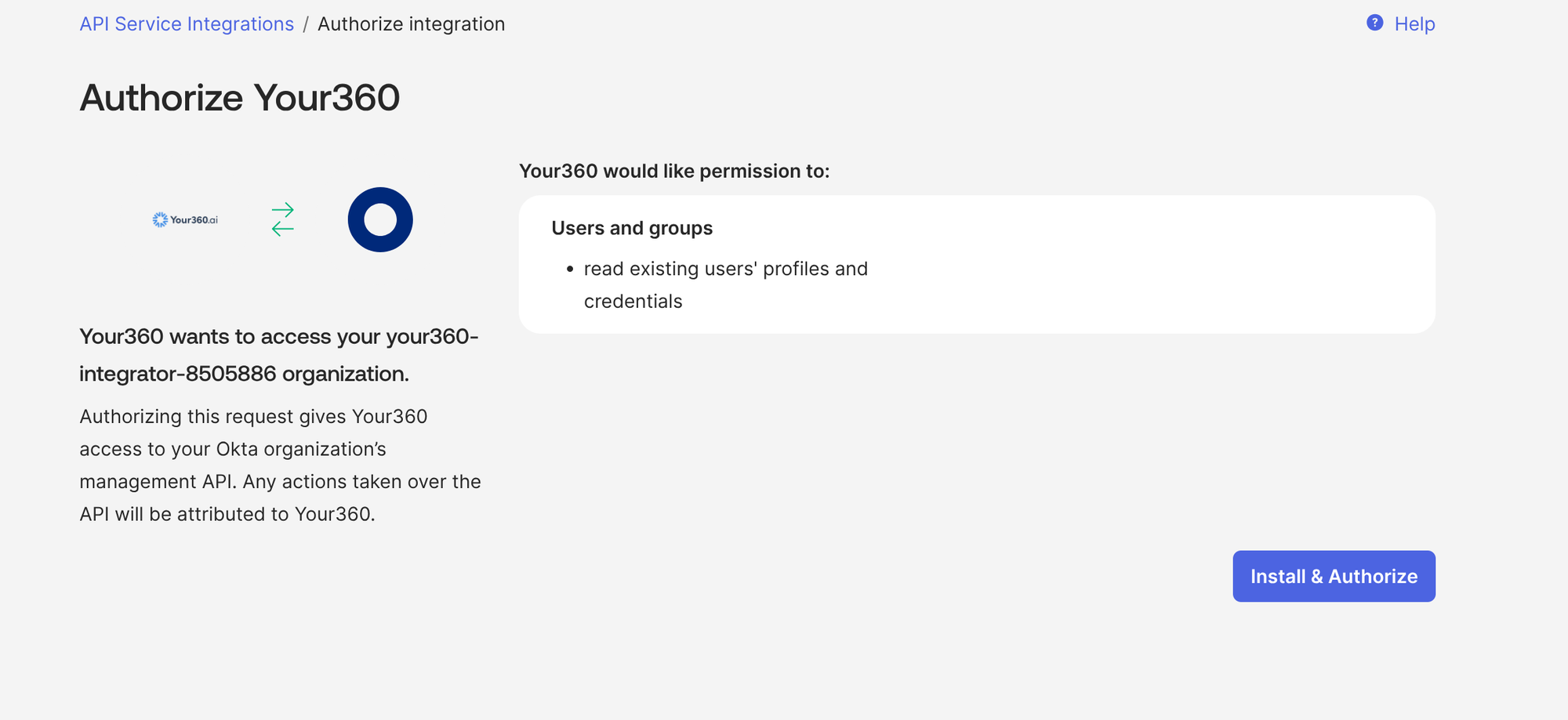
API Service Integrations → Authorize integration. “read existing users’ profiles and credentials” is Okta’s own wording for
okta.users.read, the single scope requested. It does not expose passwords — Okta never returns password material through this API — and Your360 reads only first name, last name and email from each profile.The page also notes that anything done with these credentials is attributed to Your360 in your Okta System Log, so directory reads are attributable to this integration rather than to an admin.
2. Copy the credentials
-
Copy the client secret first — it is shown once
Okta opens Required: Copy your client secret as soon as the integration installs.
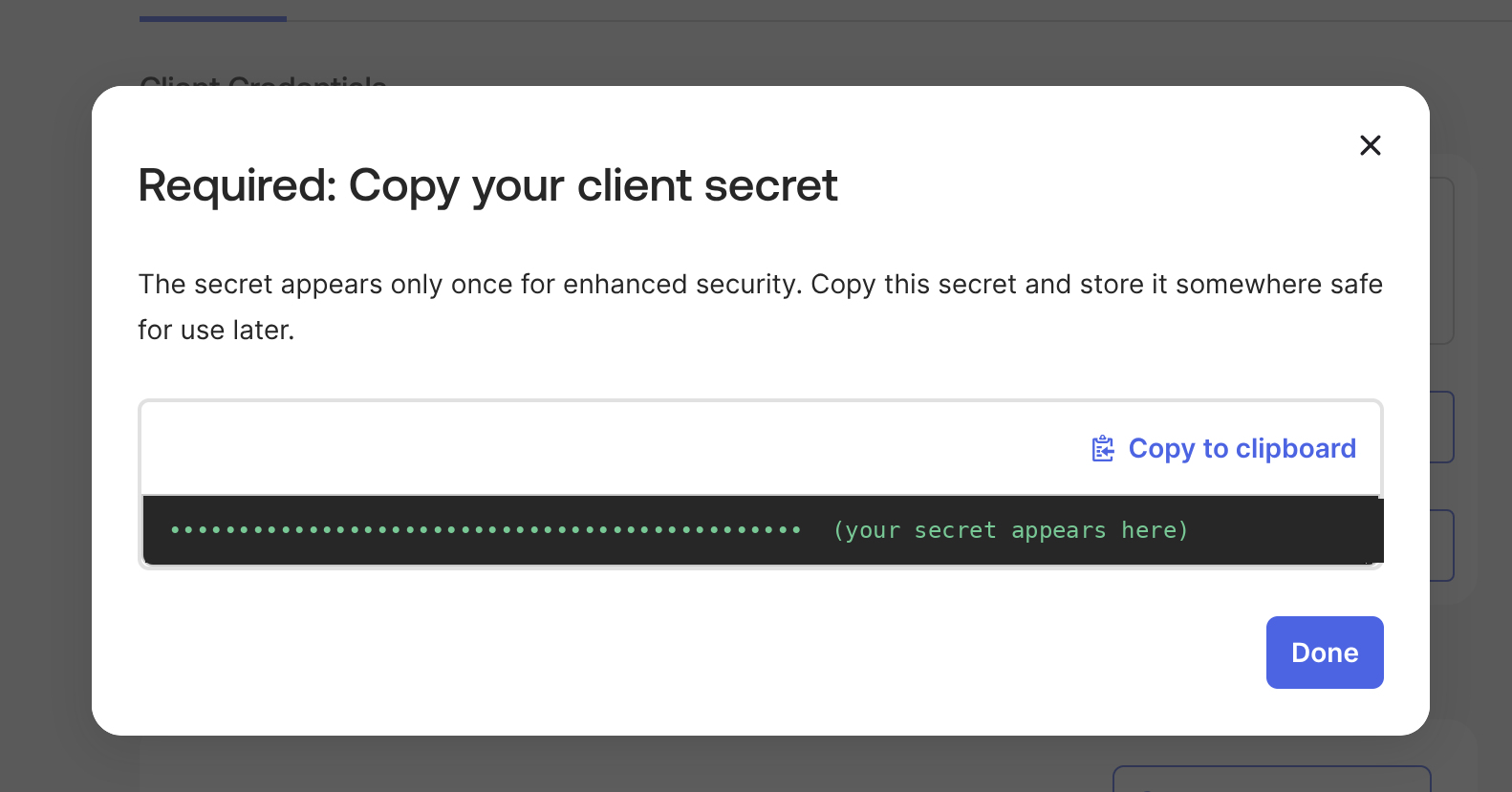
“The secret appears only once for enhanced security.” Use Copy to clipboard and paste it into Your360 in step 3 before you close this dialog. Okta cannot show this secret again.
If it is lost, nothing is broken and the integration does not need reinstalling — generate a replacement, as under Rotating the client secret.
-
Copy the Okta domain and client ID
Both sit on the integration’s General tab, each with a copy button, and both can be read again whenever you need them.
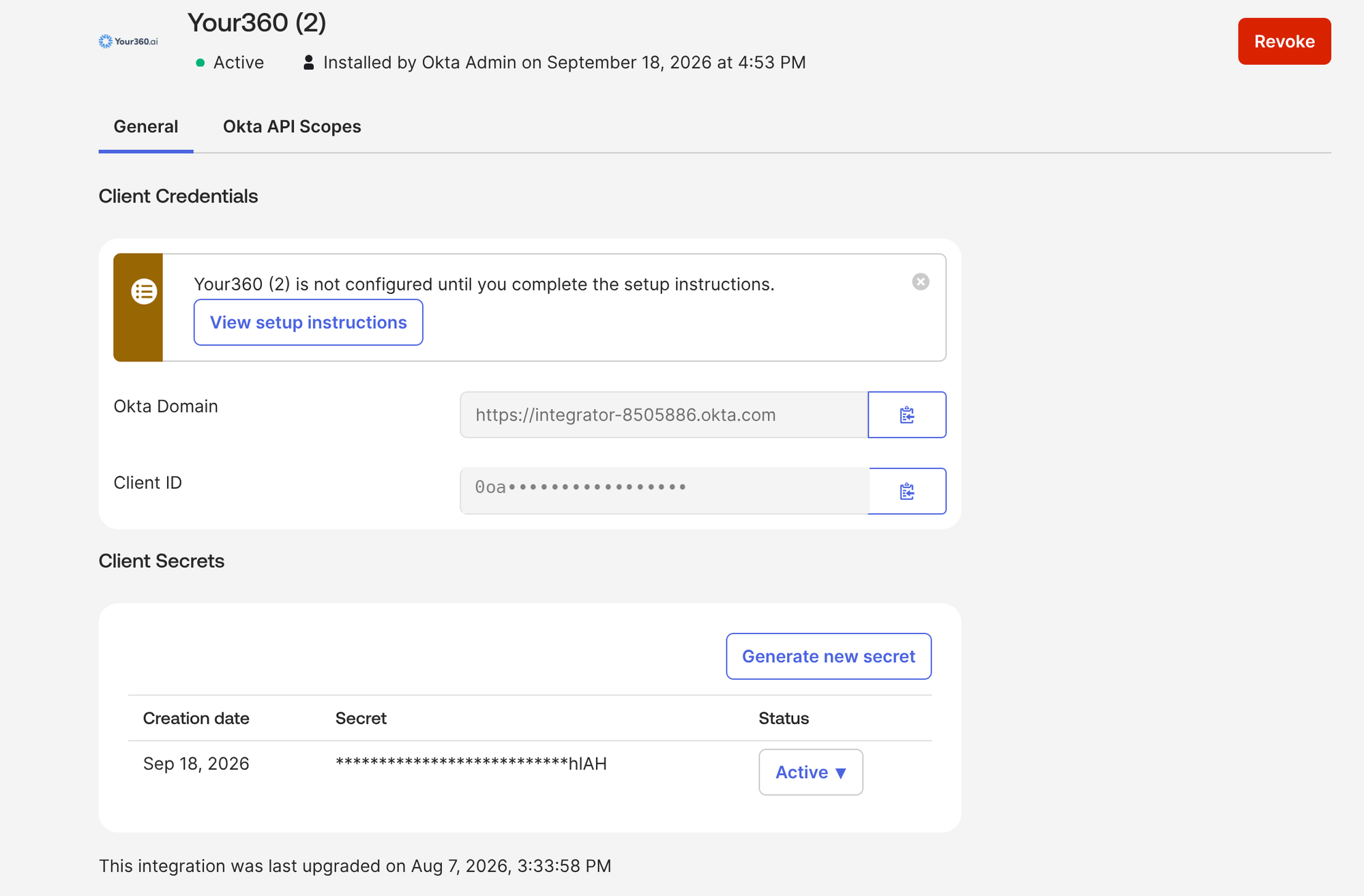
General → Client Credentials. Client ID masked here; yours is shown in full. This page is also where the secret is rotated and where Revoke lives. The domain is copied as a full address,
https://acme.okta.com. Paste it into Your360 exactly as Okta gives it — with or without thehttps://— and Your360 will normalize it.The banner about completing the setup instructions is Okta pointing at this guide; it clears once you have connected the integration in Your360 and dismissed it.
3. Connect it in Your360
-
Paste the details
Open
https://app.your360.ai/organization/settings?tab=integrations, click Connect on the Okta directory card, and choose Install the Your360 AI Directory Lookup integration in Okta.Your360 field Value from Okta Okta domain ← Your Okta domain, e.g. acme.okta.comClient ID ← Client ID from step 2 Client secret ← Client secret from step 2 Click Connect. Your360 authenticates against your Okta org before saving, so a wrong or mistyped value is reported here rather than turning up later as an empty search.
Verify the integration
Search for a colleague
Still on the Integrations tab, the Directory section below the card lists the people Your360 can see. Type part of a colleague's name or email address and confirm they appear.
Then open a program and start nominating a participant or feedback provider: the same matches appear as you type, and picking one fills in their name and email.
Results are cached for up to five minutes, so a person added to Okta moments ago may take that long to appear.
Troubleshooting
Your360 reports it could not authenticate with those credentials
Check the Okta domain first — it is the bare host, acme.okta.com, with no https:// path after it and no -admin in the name. Then confirm the client ID and secret were copied from the Your360 AI Directory Lookup API service integration and not from another app. If the secret was lost or only partly copied, generate a new one — there is no need to reinstall.
invalid_client, mentioning private_key_jwt
The credentials came from an API Services app built by hand rather than from this integration. Okta's org authorization server accepts a client secret only from an installed API service integration; for an app you build yourself it requires key authentication instead. Either install this integration, or follow the custom app guide, which sets that app up with a keypair.
“The DPoP proof JWT header is missing”
Proof-of-possession is switched on for the app the credentials came from. Okta validates DPoP before it checks the credentials, so this message appears whatever is pasted and says nothing about whether the secret is correct. Turn proof-of-possession off and connect again.
Searches return nobody
Only ACTIVE Okta users are searched — staged, suspended and deactivated accounts never appear. If active colleagues are also missing, confirm the integration is still listed under API Service Integrations and has not been revoked, then allow five minutes for cached results to expire.
Searches worked yesterday and return nobody today
Check whether the integration was revoked in Okta, or the secret Your360 holds was deactivated during a rotation. Your360 keeps the connection until you disconnect it, so the card still reads Connected while Okta refuses every request — and if you also have Slack connected, Slack results keep appearing, which can make the gap easy to miss. Reconnect the card with a current client secret.
Still stuck
Email support@your360.ai with your Okta domain and the message Your360 showed. Please don't send us the client secret.
Rotating the client secret
Generate a new one, then retire the old
Open the integration under Applications and Resources → API Service Integrations, and in the Client Secrets section of the General tab — visible in the screenshot above — choose Generate new secret. Okta shows the new secret once, in the same dialog as the install, and lists the previous one beside it with its status.
An integration can hold two secrets at a time, so the old one keeps working while you swap: paste the new secret into Your360 with Replace secret on the directory card, confirm a search still returns people, then set the previous secret to Inactive in Okta and delete it.
This is also the fix if the secret was lost before it reached Your360 — generate another one rather than reinstalling the integration.
Removing access
From either side
In Okta, open the integration under Applications and Resources → API Service Integrations and choose Revoke — the red button at the top right of the detail page pictured in step 2. This revokes the scope grant along with the client ID and secret, and Your360 can read nothing from that moment.
In Your360, click Disconnect on the directory card, which deletes the stored credentials. Either side is enough; doing both leaves nothing behind. Neither affects single sign-on, and no Your360 data is removed — only the ability to search your directory.